
Step 1 of 8 · In the office
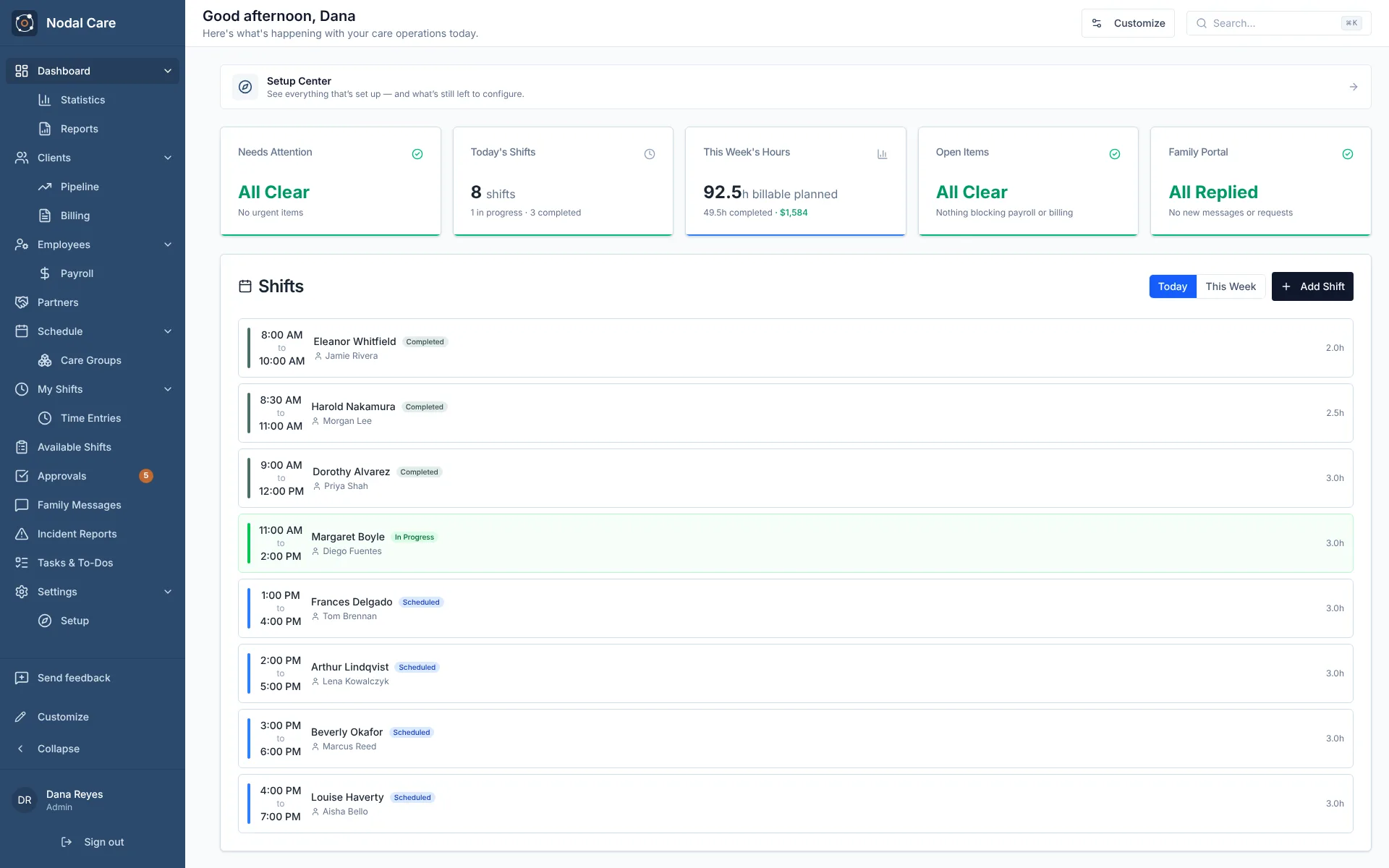
Start the day with what needs attention
Today’s shifts, this week’s hours, open items and unanswered family messages are on one screen. When nothing is urgent, it says so.
For non-medical, private-pay home care agencies of any size
Eight real screens, from the office to the caregiver’s phone to the family portal. Click through at your own pace. No sign-up needed to look around.
4 months free · no card required · from $99/month · cancel any time
The screens below come from a test account with made-up people. Use the buttons, the numbers, or your arrow keys.
Step 1 of 8 · In the office
Today’s shifts, this week’s hours, open items and unanswered family messages are on one screen. When nothing is urgent, it says so.
Step 2 of 8 · In the office
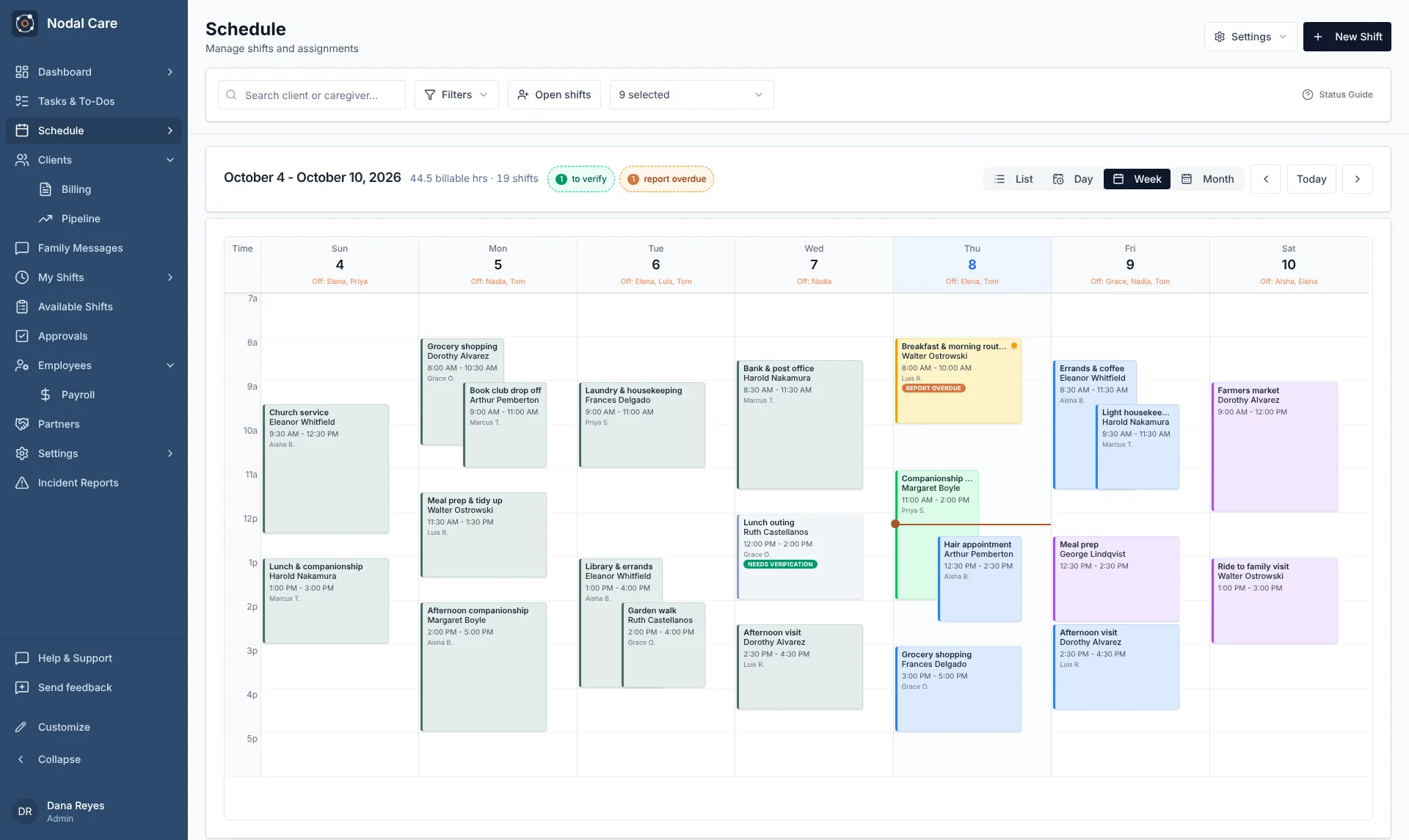
The weekly calendar shows every visit, who is off, and which shifts still need a look. Shifts you post to the open-shift pool can be claimed by a qualified caregiver.
Step 3 of 8 · In the office
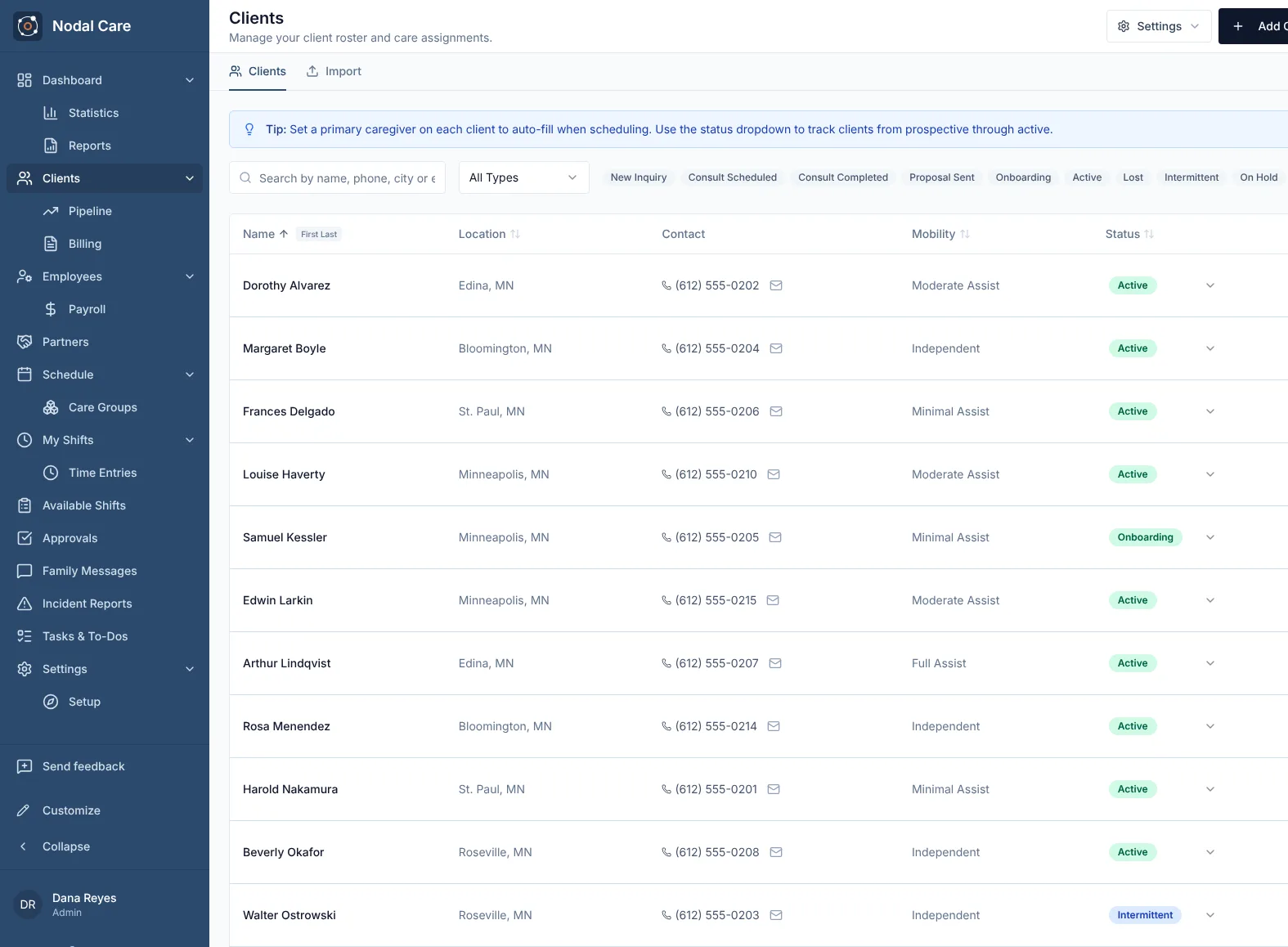
Track people from first inquiry to active client. Set a primary caregiver on each client so scheduling fills in for you. Bring a whole roster over by importing a spreadsheet.
Step 4 of 8 · In the office
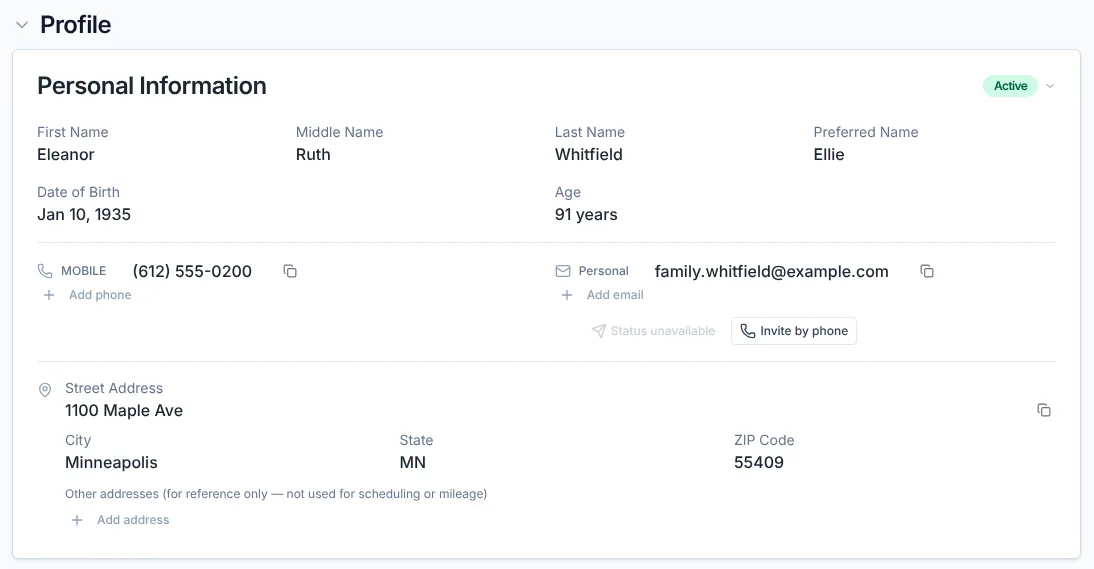
Contact details, address and status sit on the client’s profile, next to the schedule and documents.
Step 5 of 8 · On a caregiver’s phone
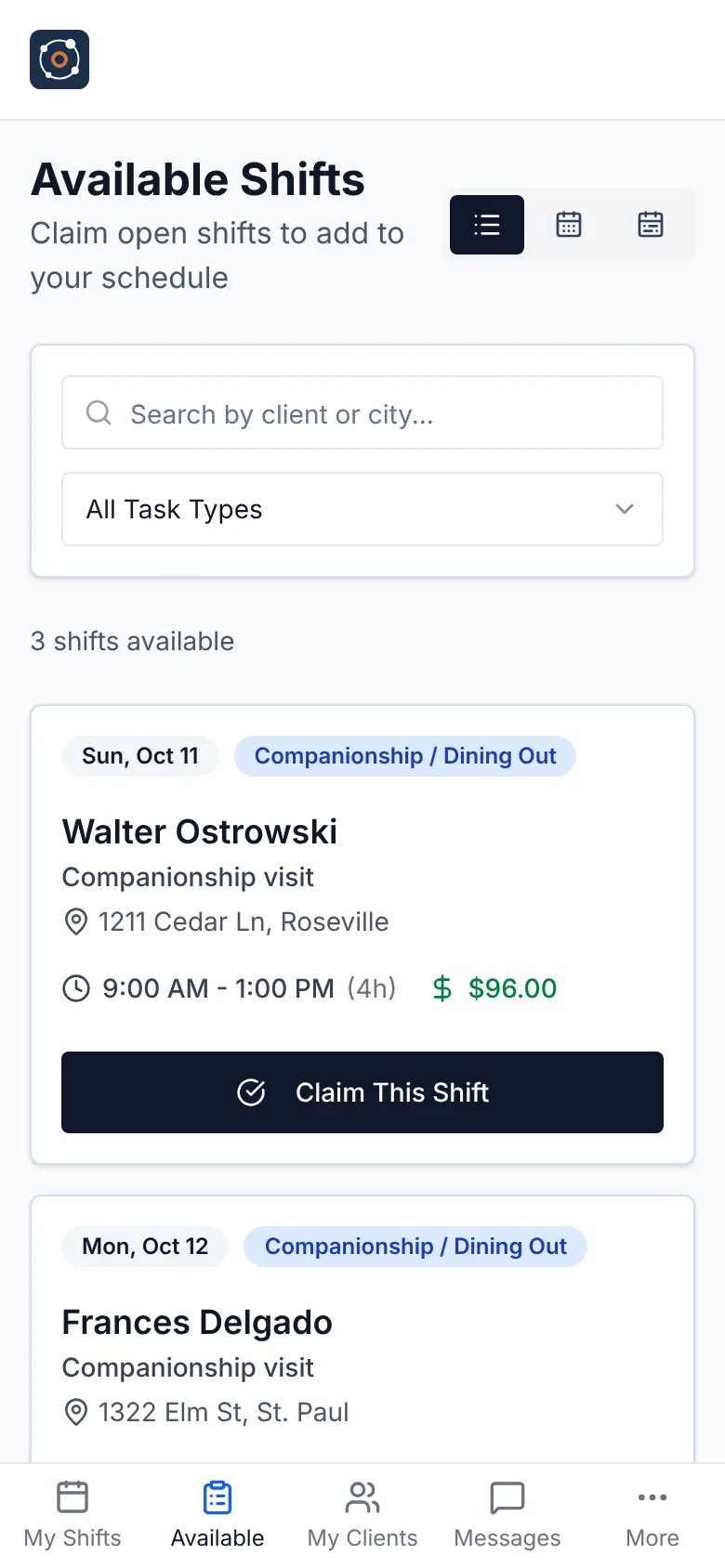
Open shifts appear on the Available Shifts page. A caregiver who is qualified for one claims it from their phone, and it lands on their schedule.
Step 6 of 8 · On a caregiver’s phone
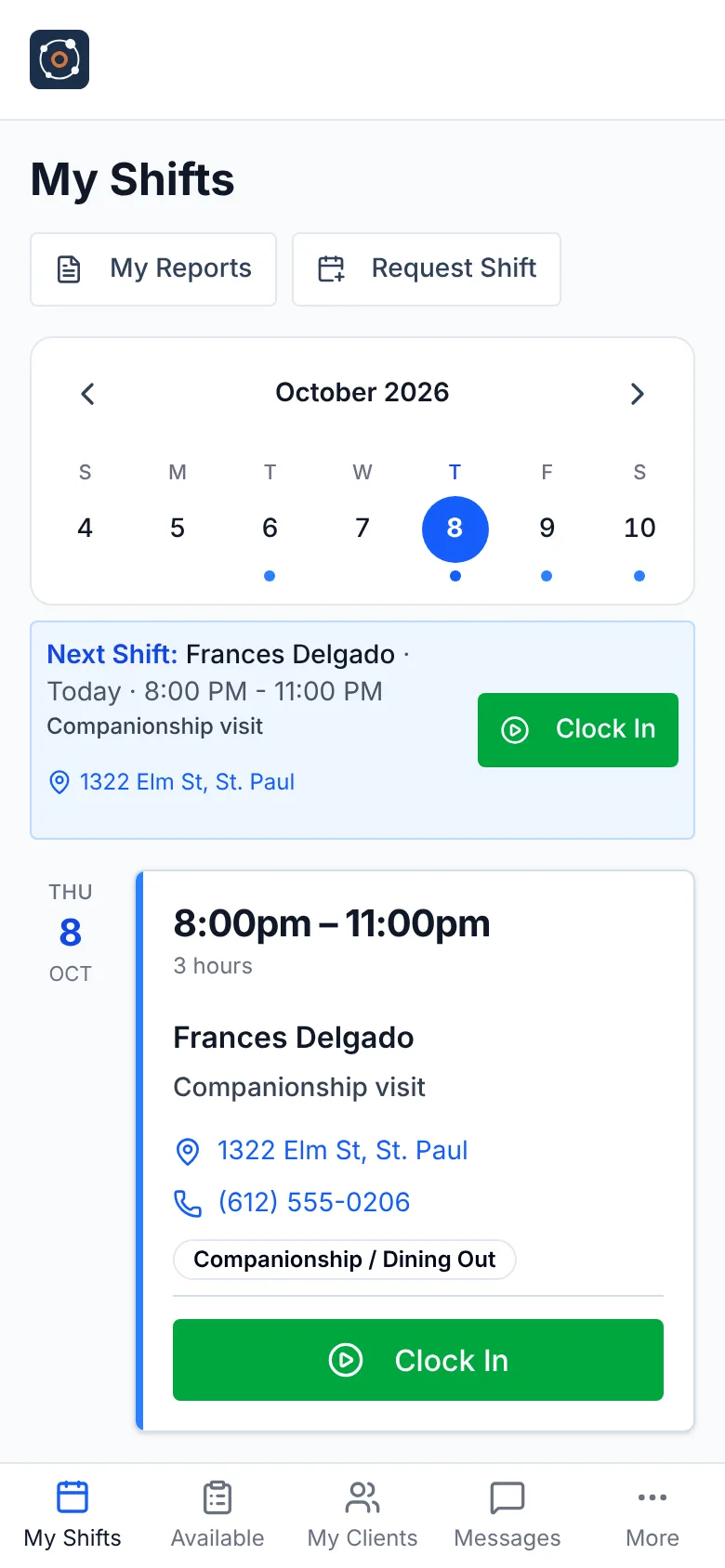
The caregiver app installs from the browser, with no app store, and it works offline. Clock-ins are location-checked, and caregivers sharing a shift each clock in separately.
Step 7 of 8 · On a caregiver’s phone
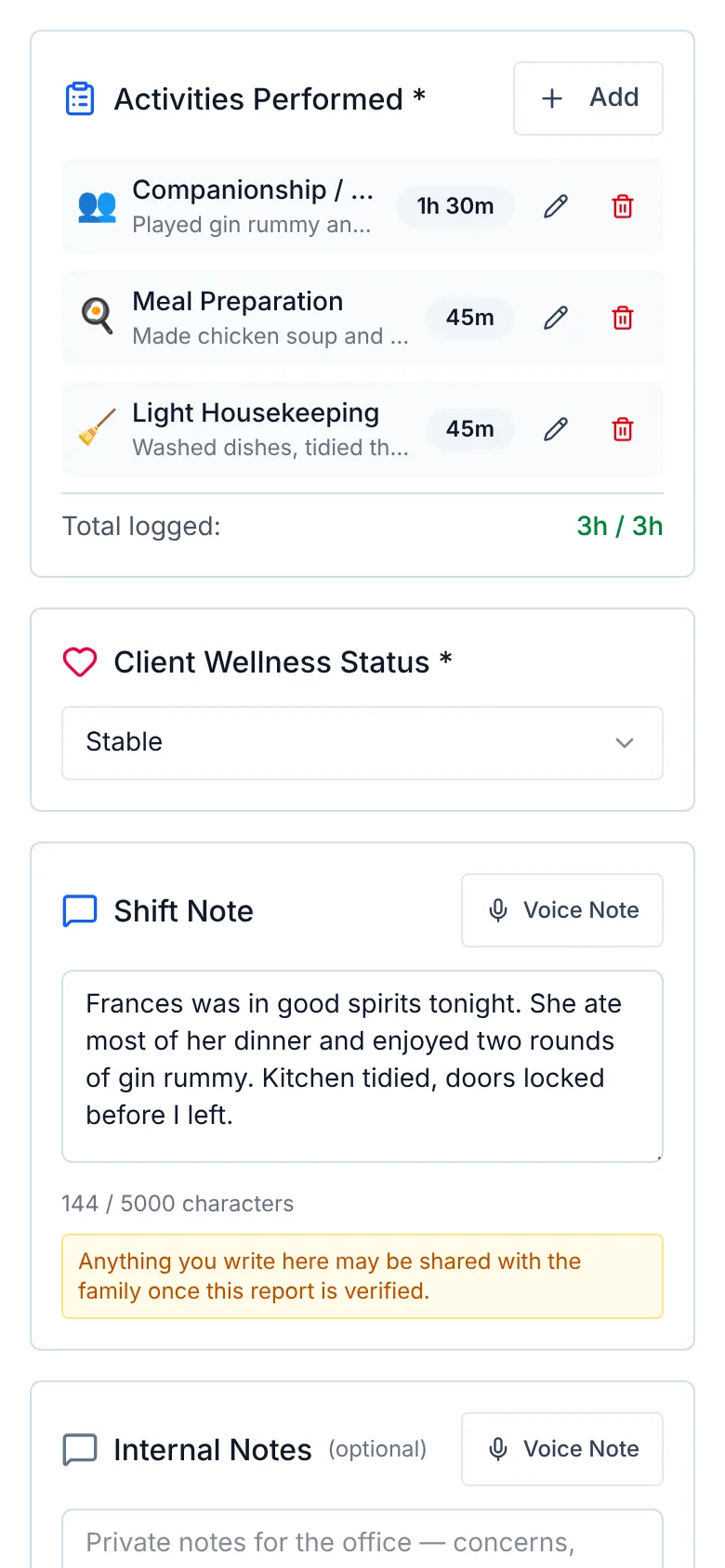
Caregivers log what they did, note how the client is doing, and can dictate a voice note. A reminder tells them anything written here may be shared with the family once the report is verified.
Step 8 of 8 · For the family
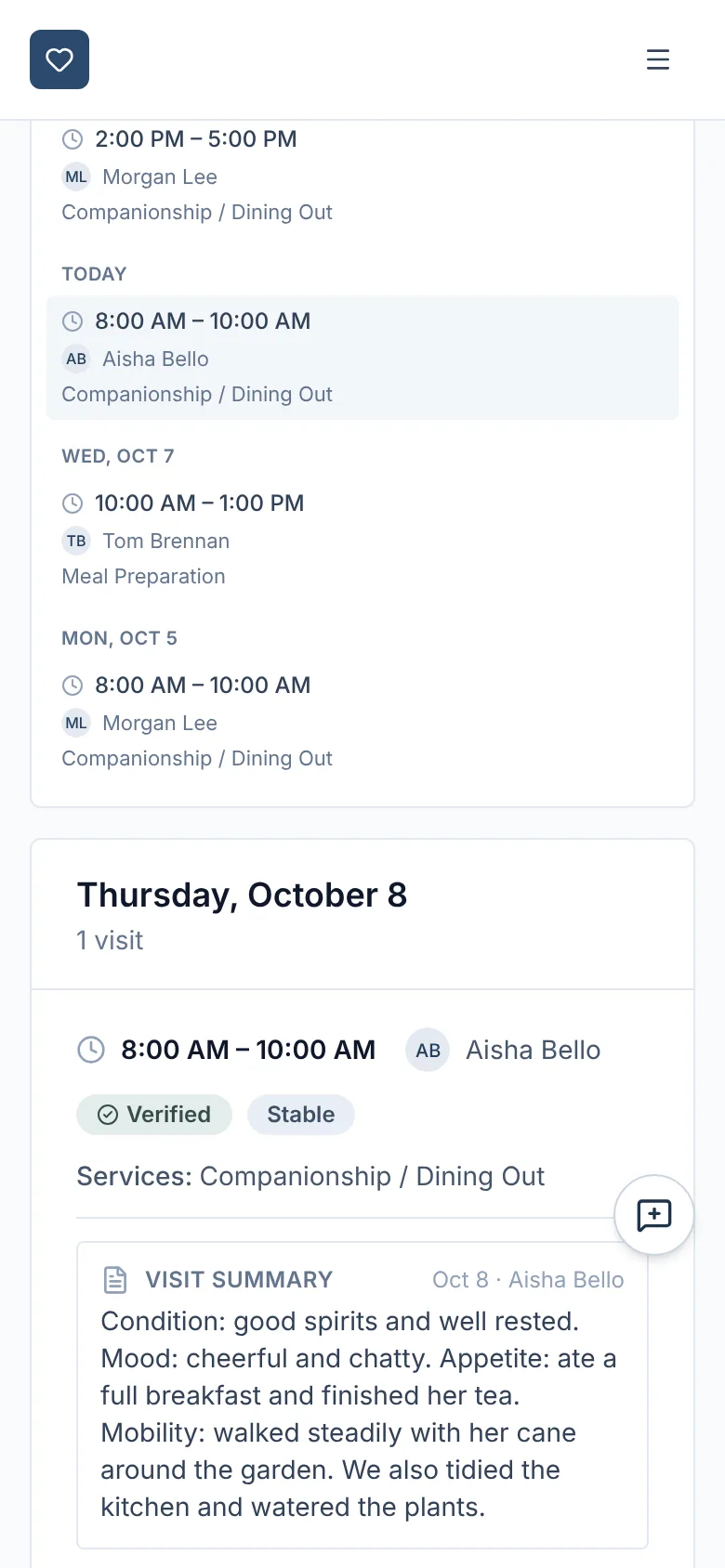
Your supervisors choose what the family sees. Families can read approved shift reports and photos, view the schedule, request additional shifts, upload documents and message your staff.
Set up your agency, bring your clients over, and pay caregivers from verified hours. Your first 4 months are free.
Create your agency4 months free · no card required · from $99/month · cancel any time
No contract. Cancel whenever. Your data is yours to export.